
TIME STON-e.coVISUAL TIMER
Start on the web

TIME STON-e · English user guide

Your timer,
step by step.

Share the remaining time and agenda with TIME STON-e Visual Timer.

iPhone · iPad · Android · Web

One person leads.
Everyone sees the same time.

Set an agenda and invite participants with a QR code or link. Your phone becomes the controller, while TVs and tablets show the timer to everyone.

HostAdjust time and stages
Send notices
ParticipantCheck time and agenda
Read shared notices
Without a shared timer

“How long is left?” “Is it time for the next activity?”

The comic characters look confused, comparing different agendas and asking what comes next without a shared timer.

Illustration of an example use case.

QUICK START

Start with these three steps.

The public free app and website follow the same basic workflow.

  1. 01

    Set stages and times

    Open the app and enter a session name and a duration for each stage. When ready, tap ‘Create shared session’.

  2. 02

    Invite with a QR code or link

    In ‘Invite participants’, share the QR code or participant link. It opens in a TV, tablet or phone browser.

  3. 03

    Start and watch together

    When the host taps ‘Start’, screens in the same session count down together. Adjust the time and stages as needed.

Send participants the link from ‘Invite participants’. Keep the host screen address for yourself.

YOUR TIME, YOUR SCENE

Make it fit your situation.

Use the same shared timer in different situations, just like the scenes below.

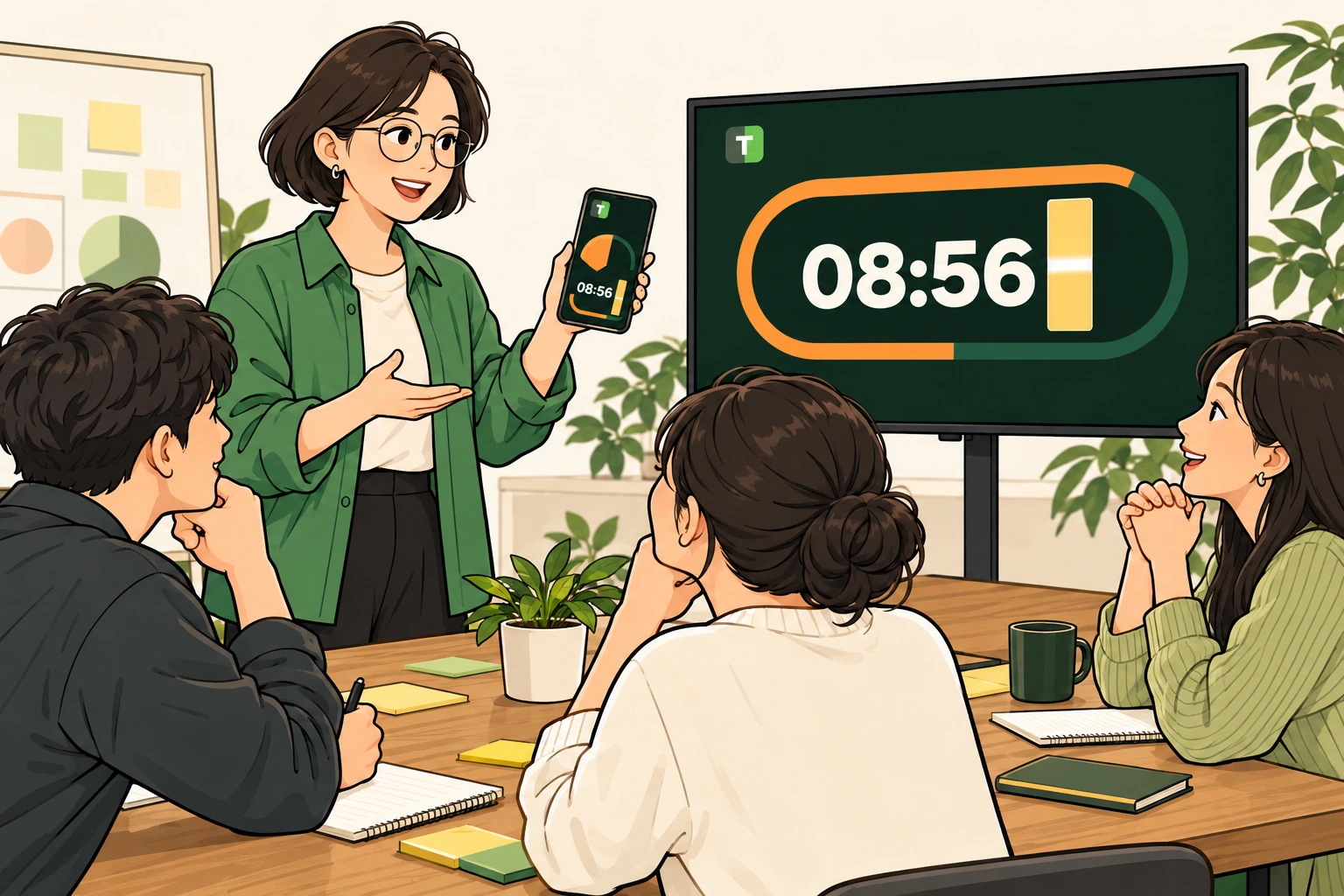
Comic illustration of a facilitator controlling a timer on a phone while meeting participants share the remaining time on a monitor.
Illustration of an example use case.

01 WORKSHOP & MEETING

Workshops & meetings

Focus on ideas without losing track of what comes next.

  1. Plan the flow first.

    Name the session and enter the briefing, work, presentation and break stages with their durations. Save frequently used agendas as templates.

  2. Share the same screen.

    Create a shared session, then share the QR code or participant link from ‘Invite participants’. Open the link in the meeting room TV or tablet browser.

  3. Adjust as you go.

    Tap Start to begin. Add a minute with +1 min when discussion runs long, or pause when needed. You can also send notices such as ‘Presentations begin soon’.

Try this agenda
  • Briefing10 min
  • Idea work15 min
  • Presentation3 min
  • Break5 min

Turn on ‘Automatically advance’ if you want each stage to continue into the next.

ON YOUR SCREEN

Workshops & meetings: in the app

Green numbers show where to tap.
Tap a screen to enlarge it.

  1. STEP 01
    Set time and stages

    Before creating a session, enter activity names and durations.

    1. Minutes

      Tap the number to change minutes. The seconds field on its right lets you set seconds too.

    2. Stage name

      Use clear names such as Briefing, Work and Presentation.

    When ready, scroll down and tap ‘Create shared session’.

  2. STEP 02
    Invite participants

    Tap ‘Invite participants’ above the timer to open this window.

    1. Copy link

      Open the copied participant link in the TV or tablet browser, or send it to participants.

    Participants can also scan the QR code in this window. The QR shown here is a demonstration example.

  3. STEP 03
    Start and adjust time

    Tap Start to begin the countdown. This screen shows the timer after starting.

    1. Start · Pause

      The middle button changes to Pause after starting. Tap it again to pause.

    2. +1 min

      Add a minute if discussion runs long. The −1 min button on the left reduces time.

    After pausing, tap Resume in the same place to continue.

Actual free web-app screens using sample agendas. Layout may vary by device and screen size.
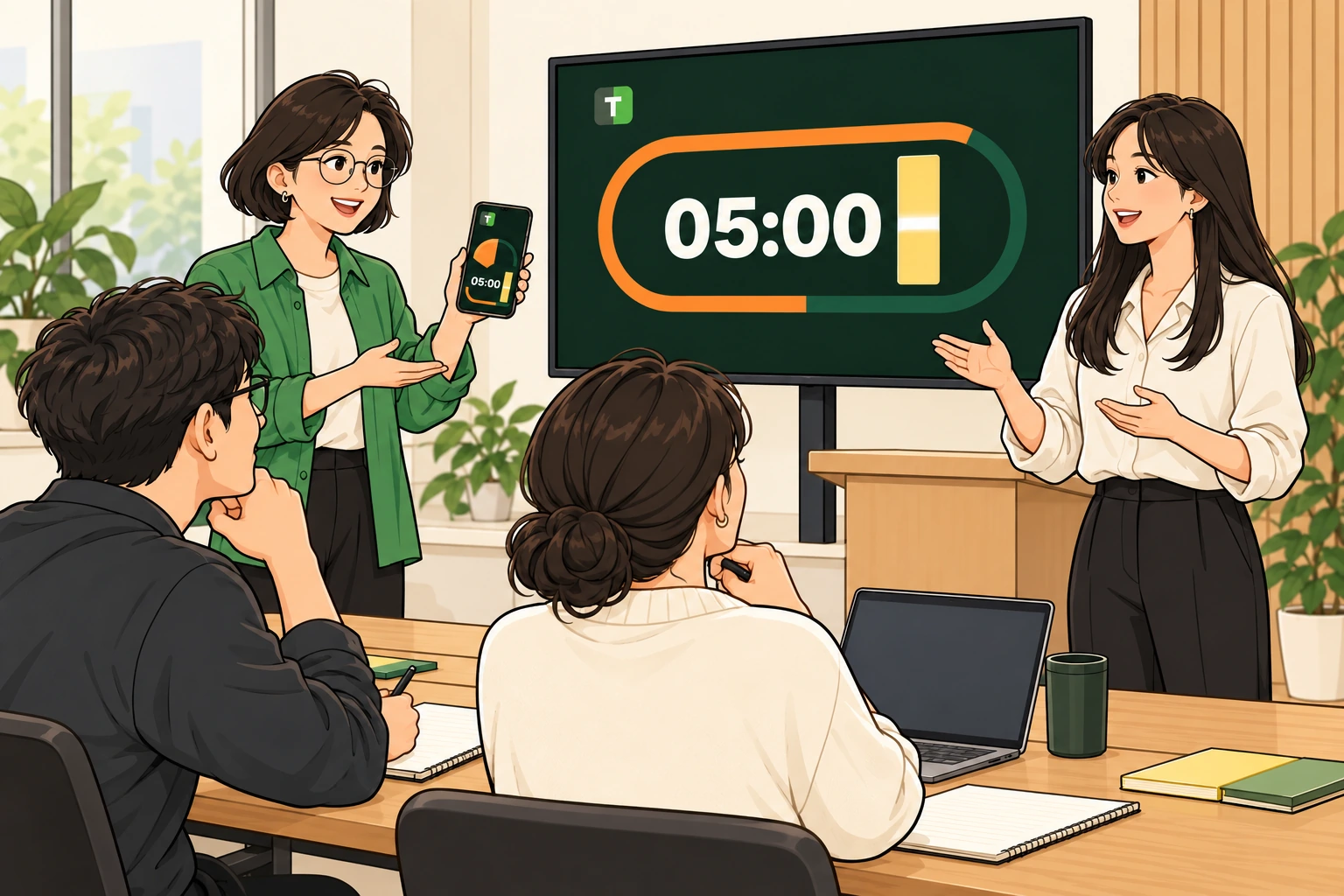
Comic illustration of an adult class where a presenter and learners use a shared large-screen timer to manage presentation time.
Illustration of an example use case.

02 CLASS & PRESENTATION

Classes & presentations

Keep everyone on the same pace with visible time remaining.

  1. Give each activity a time slot.

    Build stages for explanation, individual work and presentations. Add a presentation stage for each speaker and set its duration.

  2. Choose an easy-to-read display.

    Open the participant view on a large monitor or tablet and use full screen. Choose Track, Bar or Dots for the clearest view in your space.

  3. Guide transitions.

    Use Pause and Resume for questions. To change activities, tap ‘Next stage’ and then ‘Start’. Send a message when an explanation is helpful.

Try this agenda
  • Explanation5 min
  • Individual work10 min
  • Presentation3 min

Open the participant link on the large screen and use your own phone to control the session.

ON YOUR SCREEN

Classes & presentations: in the app

Green numbers show where to tap.
Tap a screen to enlarge it.

  1. STEP 01
    Choose a readable display

    Scroll down on the host screen to the DISPLAY block.

    1. Display style

      Choose Track, Bar or Dots. A check marks the selected style.

    2. Color theme

      Choose Carbon, Paper or Blue for the best visibility in your space.

    The selected display applies to the timer and participant view.

  2. STEP 02
    Use full screen

    Tap Full screen at the top to enlarge the timer and agenda as shown.

    1. Exit full screen

      Tap the screen once to reveal Close at the upper right. Tap it to return to the host screen.

    The layout changes with orientation. Return to the host screen to adjust time.

  3. STEP 03
    Move to the next activity

    This screen shows Individual work after tapping Next stage from Explanation.

    1. Start the new stage

      The selected activity is ready. Tap Start in the middle to begin its timer.

    2. Next stage

      The button shows the next activity and its duration. Tap it to move there.

    With automatic advancement enabled, the next activity begins when time runs out.

Actual free web-app screens using sample agendas. Layout may vary by device and screen size.
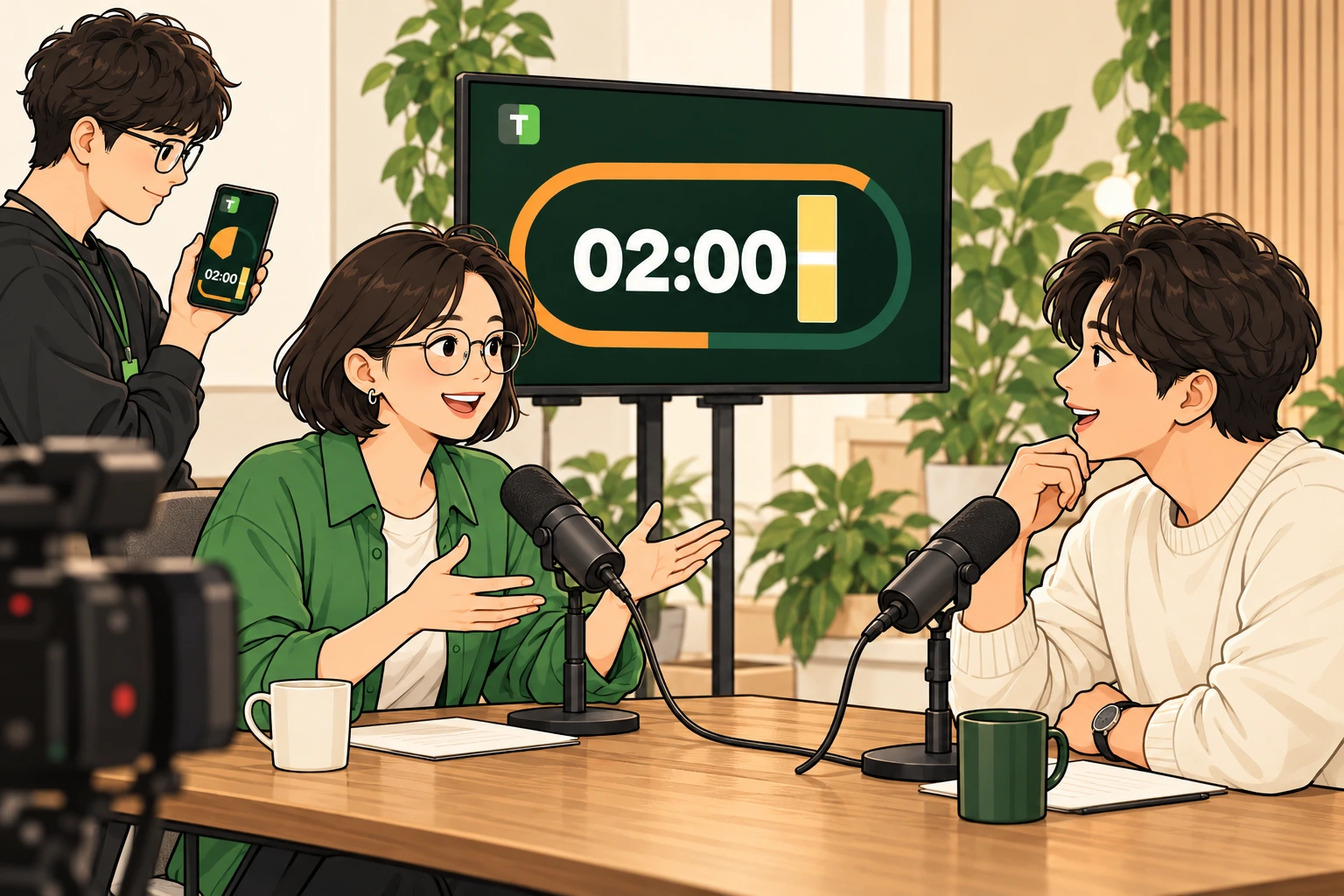
Comic illustration of two interview guests talking while a staff member uses a phone and a separate timer monitor to provide time cues.
Illustration of an example use case.

03 BROADCAST & INTERVIEW

Broadcasts & interviews

Let conversation flow, with quiet time cues.

  1. Build a rundown.

    Split the session into opening, questions and conversation, and wrap-up. Check the order and durations before going live.

  2. Put it in sight.

    Open the participant view on a separate tablet or monitor the guests can see. Staff adjust time from the host screen.

  3. Send quiet message cues.

    Send short notices such as ‘Last question’ or ‘Please wrap up’. Clear a current notice or announce a previous one again from message history.

Try this agenda
  • Opening2 min
  • Questions & conversation8 min
  • Wrap-up2 min

Use the participant link on a guest-facing tablet or auxiliary monitor as a time-cue screen.

ON YOUR SCREEN

Broadcasts & interviews: in the app

Green numbers show where to tap.
Tap a screen to enlarge it.

  1. STEP 01
    Send a short notice

    Write a cue in the Participant messages block on the host screen.

    1. Message input

      Tap the field and write a short cue such as ‘Last question’.

    2. Send

      Tap the paper-plane Send button to display the notice on all participant screens.

    Sent text appears in Current announcement and in this device’s Message history.

  2. STEP 02
    Clear the on-screen notice

    Your sent text appears under Current announcement.

    1. Clear displayed message

      Tap this when the cue is no longer needed. The current notice disappears from participant screens.

    History remains. Clearing a notice and deleting history are separate actions.

  3. STEP 03
    Reuse an earlier message

    Select a previously sent message in Message history.

    1. Select history entry

      Tap a message to reveal its action buttons below.

    2. Announce again

      Display the same message to participants again. Use Delete history beside it to remove the saved entry.

    Reuse a cue quickly without typing it again.

Actual free web-app screens using sample agendas. Layout may vary by device and screen size.

Comic illustration of a seminar where the host manages time on a phone and attendees share a timer on a separate monitor.
Illustration of an example use case.

04 LECTURE & SEMINAR

Lectures & seminars

A clear, comfortable flow from the talk to Q&A.

  1. Separate talk and question time.

    Create stages for the talk, Q&A and break. If there are several speakers, add talk and question slots for each.

  2. Let speaker and host see together.

    Open the participant link on a speaker-facing tablet or shared monitor. The host checks and adjusts time on their phone.

  3. Move to questions when ready.

    Pause for a brief interruption. For a dedicated Q&A slot, tap ‘Next stage’ followed by ‘Start’. Add a minute with +1 min if needed.

Try this agenda
  • Talk25 min
  • Q&A10 min
  • Break5 min

Turn off ‘Automatically advance’ if the host should decide when to change stages.

ON YOUR SCREEN

Lectures & seminars: in the app

Green numbers show where to tap.
Tap a screen to enlarge it.

  1. STEP 01
    Plan talk and Q&A time

    Check the talk, Q&A and break names and durations in the agenda.

    1. Edit agenda

      Tap Edit to set separate talk and question durations. Saving returns to the first activity in ready state.

    2. Automatic advancement

      Turn this off to switch stages manually based on questions. It is off in this example.

    This example uses a 25-minute talk, 10-minute Q&A and 5-minute break.

  2. STEP 02
    Run the talk timer

    When the talk starts, the speaker and participants see the same remaining time.

    1. Pause

      Pause for a question or equipment check, then tap Resume in the same place.

    2. +1 min

      Add a minute when the talk needs more time. Use −1 min on the left to reduce it.

    Use the participant view on a separate monitor and the host’s phone to control time.

  3. STEP 03
    Continue to Q&A

    This screen shows Q&A after tapping Next stage from the talk.

    1. Start Q&A

      Check the prepared 10 minutes and tap Start to begin question time.

    2. Move to the break

      When questions finish, move to the break stage and tap Start again.

    With automatic advancement off, the host selects both Next stage and Start.

Actual free web-app screens using sample agendas. Layout may vary by device and screen size.
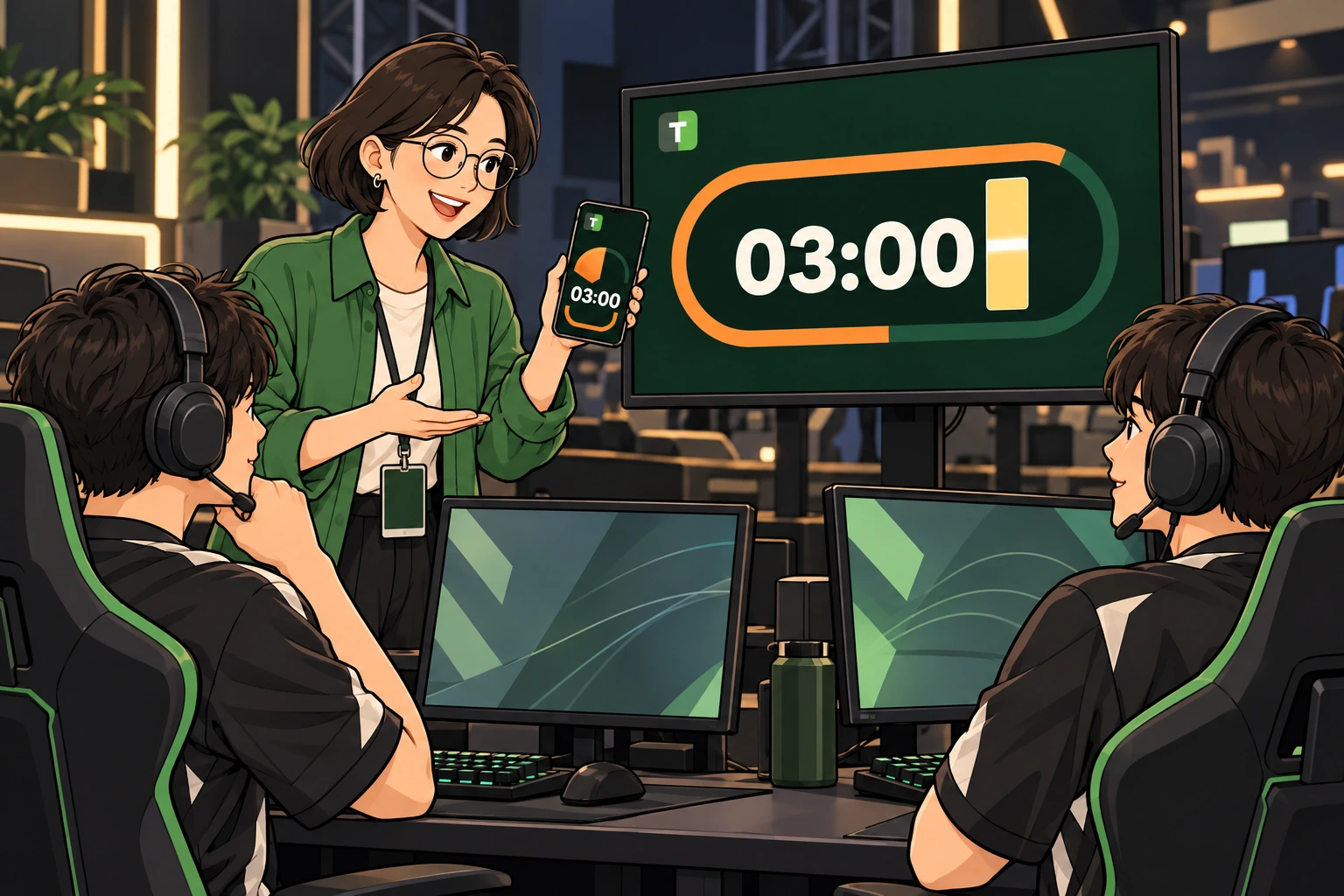
Comic illustration of an esports organizer controlling preparation time on a phone while adult players wearing headsets share a separate countdown monitor.
Illustration of an example use case.

05 ESPORTS OPERATIONS

Esports operations

Share preparation and break times with players and organizers.

  1. Plan operational stages.

    Create stages for player briefing, match preparation, between-round breaks and the next match briefing. The organizer sets preparation and break durations to suit the event.

  2. Connect a screen players can see.

    Open the participant link on a separate monitor near the waiting area or player seats, so everyone can see the preparation time left.

  3. Follow the pace on site.

    The host controls Start, Pause and ±1 min. Send notices such as ‘Please prepare for the next match’, then move to the next stage when players are ready.

Try this agenda
  • Player briefing2 min
  • Match preparation3 min
  • Between-round break3 min
  • Next match briefing2 min

Turn off automatic advancement to check player readiness before moving to the next stage.

ON YOUR SCREEN

Esports operations: in the app

Green numbers show where to tap.
Tap a screen to enlarge it.

  1. STEP 01
    Separate preparation and breaks

    The organizer sets player briefing, match preparation and between-round break times.

    1. Edit operational stages

      Use Edit to enter names and durations. Add stages to suit the event’s flow.

    2. Manual transition

      With automatic advancement off, check player readiness before moving to the next stage.

    The organizer sets preparation and break time and controls it on site.

  2. STEP 02
    Share match preparation time

    This screen shows a running three-minute preparation timer after the player briefing.

    1. Pause preparation

      Pause for player equipment checks, then Resume. You can also adjust time with ±1 min.

    2. Between-round break

      Move to the next stage and tap Start when it is time for a break.

    Open the participant view on a monitor near player seats so everyone can see the time left.

  3. STEP 03
    Send players an event notice

    Use Participant messages for short cues about preparation or gathering times.

    1. Enter a player notice

      Write a cue such as ‘Please prepare for the next match’.

    2. Send notice

      Tap Send to show it on every participant screen in the session.

    Clear the current notice when finished, or announce recurring cues again from history.

Actual free web-app screens using sample agendas. Layout may vary by device and screen size.

KNOW YOUR CONTROLS

Get to know the screen and buttons.

Time controls are available on the host screen.

Start · Resume

Start the current stage or resume its paused timer.

Pause

Stop at the current remaining time, for questions or a short interruption.

−1 min · +1 min

Adjust the current stage’s remaining time in one-minute steps.

Next stage

Move to the next item, then tap its Start button to begin.

Participant messages

Send a notice, clear the current one or announce a previous message again from the host screen.

Full screen

Make the timer prominent. The layout adapts to portrait or landscape orientation.

Track · Bar · Dots

These show the same remaining time in different ways. Choose a display in DISPLAY. On the track, MIN represents minutes and the SEC bar represents seconds.

A LITTLE HELP

A few common questions.

Do participants need to install the app?

Participants can open the QR code or participant link in a browser. The host creates and controls the session in the iPhone/iPad app, Android app or website.

Is an internet connection required?

Yes. Creating a shared session and keeping devices in sync requires internet access. If disconnected, a screen continues from the last received time, then applies the host’s changes when reconnected.

Does it move to the next stage when time runs out?

Enable ‘Automatically advance’ on the host screen to continue to the next item. To control transitions yourself, turn it off, tap ‘Next stage’ and then ‘Start’.

Can I make the timer large on a big screen?

Choose ‘Full screen’ in the participant view. The layout adapts to portrait or landscape. Full-screen behavior can vary by device and browser.

Are agendas and messages translated automatically?

The public app and website menus support seven languages. Agenda names, notices and messages you enter are shown exactly as entered.

Are these features paid?

This guide describes the public free version’s timer, agenda, QR/link sharing and messages. Install it free from the App Store or Google Play, or start on the web.

READY WHEN YOU ARE

Ready to start
your next session together?

TIME STON-e VISUAL TIMER

Your timer. Now in an app.

Download free for iPhone, iPad and Android, or start right away on the web.

iPhone · iPad

Get it on the App Store and lead your session from an iPhone or iPad.

Download on the App Store

Android

Get it on Google Play and lead your session from an Android device.

Get it on Google Play

Download availability depends on your store country or region.

The app and web version support seven languages.

APP SCREEN

App screen guide